Articles by "Smartphone"
Showing posts with label Smartphone. Show all posts

1.Redmi 6A

Xiaomi Redmi 6A smartphone was launched in June 2018. The phone comes with a 5.45-inch touchscreen display with a resolution of 720 pixels by 1440 pixels at a PPI of 295 pixels per inch. Xiaomi Redmi 6A price in India starts from Rs. 6,599.

Specs

  • Display 5.45-inch
  • Processor 2GHz quad-core
  • Front Camera 5-megapixel
  • Resolution 720x1440 pixels
  • RAM 2GB
  • Storage 16GB
  • Rear Camera 13-megapixel
  • Battery Capacity 3000mAh

Good

  • Good-looking and easy to handle
  • Excellent battery life
  • Reasonable performance for the price

Bad

  • Too much bloat and too many ads
  • Price will rise after introductory offer
see the full video for more detailed information


2.Asus Zenfone Lite L1

Asus ZenFone Lite L1 (ZA551KL) smartphone was launched in October 2018. The phone comes with a 5.45-inch touchscreen display with a resolution of 720 pixels by 1440 pixels. Asus ZenFone Lite L1 (ZA551KL) price in India starts from Rs. 5,999.

Specs

  • 2 GB RAM | 16 GB ROM | Expandable Upto 256 GB
  • 13.84 cm (5.45 inch) HD+ Display
  • 13MP Rear Camera | 5MP Front Camera
  • 3000 mAh Battery
  • Qualcomm Snapdragon 430 Processor

Good

  • Light and easy to use
  • Dedicated microSD card slot

Bad

  • Below-average cameras
  • Outdated processor
  • Slow face recognition

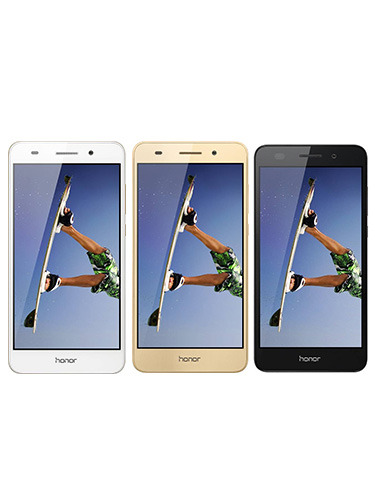
3.Honor 7S


Honor 7S smartphone was launched in May 2018. The phone comes with a 5.45-inch touchscreen display with a resolution of 720 pixels by 1440 pixels. Honor 7S price in India starts from Rs. 6,999.

Specs

  • 2 GB RAM | 16 GB ROM | Expandable Upto 256 GB
  • 13.84 cm (5.45 inch) Display
  • 13MP Rear Camera | 5MP Front Camera
  • 3020 mAh Battery
  • Mediatek MT6739 Cortex A53 Processor

Good

  • Good-looking and easy to handle
  • Bright, vibrant screen

Bad

  • Performance is severely lacking
  • Extremely weak cameras
  • Unreliable face recognition

4.Honor Holly 3


Huawei Honor Holly 3 smartphone was launched in October 2016. The phone comes with a 5.50-inch touchscreen display with a resolution of 720 pixels by 1280 pixels. Huawei Honor Holly 3 price in India starts from Rs. 6,999*.

Buy the phone by clicking here

Specs

  • 2 GB RAM | 16 GB ROM | Expandable Upto 128 GB
  • 13.97 cm (5.5 inch) HD Display
  • 13MP Rear Camera | 8MP Front Camera
  • 3000 mAh Li-Polymer Battery
  • Huawei Kirin 620 Octa Core 1.2GHz Processor

Good

  • Good quality shots with primary camera
  • Good selfie with front camera
  • Dual SIM 4G LTE support
  • Good battery backup
  • Decent Octa-core processor

Bad

  • Lacks Fingerprint scanner
  • No Gorilla Glass screen protection
  • The battery is not user replaceable

Xiaomi Redmi note 6 pro is  launched on 22 November this year ( they have already launched the model in Indonesia,Thailand and many....)


When we compare t with the previous model redmi note 5 pro ,we can realize that it comes as a successor of note 5 pro and it brings quad camera to the mix.

Overview


     12MP + 5MP dual camera                
          AI dynamic bokeh. Dual Pixel Autofocus

     20MP + 2MP AI Portrait Selfie
          Dual selfie camera

       Snapdragon™ 636
         14nm octa-core Kryo™ processor

    4000mAh two-day battery
         19:9 Full Screen Display

    AI-Based algorithms
        27 different categories

    AI Portrait 2.0
        6 new bokeh effects

Specs

Processor & Memory

Qualcomm® Snapdragon™ 636 processor
14nm FinFET - high performance, low power consumption
GPU Adreno 509
3GB+32GB, 4GB+64GB
RAM: LPDDR4X
ROM: eMMC 5.1 flash storage
*As the operating system and pre-installed apps occupy a portion of the ROM, actual available space varies.
*As system processes and apps utilize a portion of RAM, usable RAM will vary.

Dimensions

Height: 157.9mm
Width: 76.4mm
Thickness: 8.26mm
Weight: 182g

Battery

4000mAh (typ)/3900mAh (min) lithium-ion polymer battery
5V/2A charging
Micro USB, support OTG

Full screen display

19:9 immersive Full Screen Display
6.26 inch (diagonal)
2280x1080 FHD+, 403 PPI
500nit (typ) brightness
Color contrast ratio: 1500:1,
NTSC:84%
2.5D glass, rounded display corners
Corning® Gorilla® Glass
Full Screen Gestures

Camera

12MP + 5MP AI dual camera
12MP primary camera
1.4μm, f/1.9 aperture
Dual Pixel Autofocus
5MP secondary camera
1.12μm, f/2.2 aperture
Single tone dual-LED flash
Dual Pixel Autofocus
Enhanced low-light photography
HDR
Panorama
Burst mode
Face recognition
EIS for video recording
Dynamic Bokeh
20MP + 2MP front camera
20MP primary camera
0.9μm, f/2.0 aperture
4-in-1 Super Pixel
2MP secondary camera
1.75μm, f/2.2 aperture
AI portrait selfie, Beautify 4.0
Selfie timer
Face recognition

Connectivity

4G dual SIM:
3-choose-2 hybrid SIM tray
nanoSIM + nanoSIM/microSD
Max 256GB Vfat microSD
Network bands:
Global bands(No B28)
GSM:B2/3/5/8
WCDMA: B1/2/4/5/8
LTE FDD: B1/3/4/5/7/8/20
LTE TDD: B38/40
Global bands(with B28)
GSM: B2/3/5/8
WCDMA: B1/2/4/5/8
LTE FDD: B1/2/3/4/5/7/8/28
LTE TDD: B38/40
DCLA: 1C,3C,40C,38C(Certification according to the needs of the region)
ULCA: 3C,40C,38C(Certification according to the needs of the region)
DL 256QAM, UL 64QM
Note: Dual 4G SIM requires the support of local telecom operator service and may not be available in all regions.
System updates may be applied when network optimization occurs. For details, please refer to the system version in use on the device.
Dual SIM usage:
For 4G network support, please contact the local service provider for more information.
Wireless:
Bluetooth 5.0
Wi-Fi Direct
2.4G WIFI
5G WIFI
802.11 a/b/g/n/ac

Buttons

  • Headphone Jack
  • Microphone-2
  • Speaker/Microphone
  • Volume Buttons
  • IR Blaster
  • Microphone-1
  • Power Button
  • USB port

Sensors

  • Rear fingerprint sensor


  • IR blaster


  • Gyroscope


  • Accelerometer


  • Distance sensor


  • Ambient light sensor


  • Electronic compass


  • Hall effect sensor

GPS navigation

  • GPS


  • AGPS


  • GLONASS


  • BeiDou

Multimedia
support

  • MP4
  • M4V
  • MKV
  • XVID
  • AAC
  • AAC+
  • eAAC+
  • MP3
  • AMR
  • FLAC
Supports PCM, AAC/AAC+/eAAC+, MP3, AMR–NB and WB, FLAC, and WAV audio formats

Package contents

Redmi Note 6 Pro/ Power adapter/USB 2.0 cable
Warranty card / User guide / Clear soft case
SIM Insertion tool
Hi,we are here with another post. we apologize ,we couldn't post a single article this long ,we are really sorry😟. Today onwards we will be updating post regularly...😁

sar value

SAR is the full form of  specific absorption rate .It is a measure of rate of energy absorbed by body when exposed radio frequency electro magnetic field .It is defined as the power absorbed per mass of tissue and has units of watts per kilogram (W/kg).
                                                                                  We are now living in a digital world, each and everyone have a smartphone.when we are thinking to buy a new smartphone we only consider 
  • CAMERA
  • RAM
  • COMPANY
  • 4 G/LTE/VOLTE
  • FAST CHARGING
  • OS

And so on........ we never think about the radiation that put on us.Yes it's time to be aware about the radiation and similar affects created by your phone, scientists says that the radiation may effect the human cells and cause Tumor like disease.They also says that a person who use smartphone more than 30 min a day have the 40% chance to cause Tumor- when compared to others.Now you just think how long did you use your phone everyday.
                   There are two type of SAR values Head ( it means when we put our phone in ear ) , Body ( when we put over phone in pocket ) ."SAR value low is GOOD" and "SAR value high is BAD" Smartphones which below 1.6 w/kg is a bit more safe to use.1.6 w/kg is a perfect maximum .I surely recommend below 1.0 w/kg.Normally we all buy phones which is cheapest in the market but the radiation that output will very high. 

You can check your SAR value by the method given below:

Step 1 : Open dialer

Step 2 : Type #*07# now a dialog box can see there like this


>> The only way to escape from it is use wired headphones,don't ever use wireless headphones this will let you more danger.If you have more than one phones use the phone which have lower SAR value than other.Moreover this if you are not bought any phone let this consider strictly.


Hi,we are here with another post. we apologize ,we couldn't post a single article this long ,we are really sorry😟. Today onwards we will be updating post regularly...😁

sar value

SAR is the full form of  specific absorption rate .It is a measure of rate of energy absorbed by body when exposed radio frequency electro magnetic field .It is defined as the power absorbed per mass of tissue and has units of watts per kilogram (W/kg).
                                                                                  We are now living in a digital world, each and everyone have a smartphone.when we are thinking to buy a new smartphone we only consider 
  • CAMERA
  • RAM
  • COMPANY
  • 4 G/LTE/VOLTE
  • FAST CHARGING
  • OS

And so on........ we never think about the radiation that put on us.Yes it's time to be aware about the radiation and similar affects created by your phone, scientists says that the radiation may effect the human cells and cause Tumor like disease.They also says that a person who use smartphone more than 30 min a day have the 40% chance to cause Tumor- when compared to others.Now you just think how long did you use your phone everyday.
                   There are two type of SAR values Head ( it means when we put our phone in ear ) , Body ( when we put over phone in pocket ) ."SAR value low is GOOD" and "SAR value high is BAD" Smartphones which below 1.6 w/kg is a bit more safe to use.1.6 w/kg is a perfect maximum .I surely recommend below 1.0 w/kg.Normally we all buy phones which is cheapest in the market but the radiation that output will very high. 

You can check your SAR value by the method given below:

Step 1 : Open dialer

Step 2 : Type #*07# now a dialog box can see there like this


>> The only way to escape from it is use wired headphones,don't ever use wireless headphones this will let you more danger.If you have more than one phones use the phone which have lower SAR value than other.Moreover this if you are not bought any phone let this consider strictly.


In this tutorial we show you how to reset an iPhone or iPad to factory settings, which is essential if you need to wipe the data from a device because you're selling it. It can also be effective if your iDevice has frozen or is suffering from problems you can't identify.

Modern electronic devices are very complicated, and can get themselves into a bit of a confused state from time to time. Resetting can clear out random problems that cause the device to get stuck in a loop, appear sluggish or otherwise impair their performance. It's not a guarantee, but you'd be surprised how often it works.

For a less drastic solution to undiagnosed problems, you should first try restarting or force-restarting your iDevice. And for related advice, see How to reset an Apple TV.


Reset your device to factory settings

If you want to erase your device completely, then there are a few steps to take. First of all make sure you have a backup ready, and we're about to show you how to do so.

You can use either iCloud or iTunes to back up your iOS device. For iCloud go to Settings > iCloud > Backup and ensure that the feature is enabled. To see when the last backup was run look under the Back Up Now option where the date and time should be displayed. If you haven't done a backup before you can tap the Back Up Now button and follow the instructions. For more detailed advice on this process, read our tutorial showing how to back up an iPhone.

To use iTunes you'll need to plug your iPhone or iPad into your PC or Mac using the charging cable. Click on the iPhone or iPad icon in the top left corner of iTunes, under the Play button.

Factory-reset
Once you're confident that you've backed up your iPad or iPhone, you're ready to perform a factory reset. This will completely wipe your device, which is why having a backup beforehand is so important.

A factory reset can help resolve issues with your iPhone or iPad if it's crashing or freezing, but it is also what you'll want to do if you need to wipe your iPhone or iPad before selling it, or passing it on to a family member or friend.

When selling an iPhone or iPad, it's absolutely vital that you delete all the sensitive data stored on it. If not, an unscrupulous buyer could gain access to your social media profiles, your financial information and even your personal photos and videos, enabling them to browse through your private moments or steal your identity.

Luckily it's very easy to completely wipe an iPad or iPhone. Simply follow the steps in this tutorial and your data security will be assured.

To reset your iPhone or iPad go to Settings > General > Reset and then select Erase All Content and Settings.

After typing in your passcode if you've set one, you'll get a warning box appear, with the option to Erase iPhone (or iPad) in red. Tap this.

You'll need to enter your Apple ID password to confirm the action, then the iPad or iPhone will wipe everything off its storage and go back to the initial setup screen you saw when you first used the device.

You can also fully reset your iPhone or iPad through iTunes. When you plug in your iOS device, you should be able to see a 'Restore iPhone' button, which will fully reset the device.

Your iPhone or iPad is now ready to sell.

What if your iPhone or iPad isn't backed up?


If you're worried that your iPhone or iPad wasn't backed up, don't despair: there's a good chance that there's a backup you're unaware of.

To find out if you're backing up to iCloud (you get free 5GB of space) go to Settings > iCloud and tap on Storage. Wait a few seconds for Manage Storage to show up and tap on that. Here you will see your various backups for your iOS devices (there might even be one for an old iPhone that you could delete if you need more space).

One of the backups should say that it is This iPhone or This iPad. Tap on that and you can see what is, and isn't being backed up. You can basically turn things on and off so that they don't take up your full 5GB, or you can pay a few pounds a month for more storage.

You may think that some of those apps don't need to be backed up, after all, you will be able to download them again from the App Store as you already own them. But note that the data may include saved data for games, and other settings and preferences that you would prefer not to lose.

To check when your iPhone last backed up, go to Settings > iCloud > Backup and look at the date and time of the last back up. It will have happened the last time you plugged your iPhone in to charge and had Wi-Fi access available. It happens automatically.

If you find that you aren't backing up this way, we recommend that you go to Settings > iCloud > Back up and turn iCloud Backup On as this is the simplest way to back up and means that you always recover the data on your phone no matter where you are, all you will need is a connection to the web.

Is it possible to rescue data from a wiped iPhone or iPad?
Almost certainly not, which is why you need to be sure before resetting it

The data on an iOS device is automatically encrypted, and wiping the device destroys the encryption key, making it more or less impossible to get anything back when it's been fully erased and reset without access to a backup.

In an emergency you could try speaking to someone at an Apple Genius Bar, but it's a long shot to say the least. (This applies to a full erase/reset, mind you - in other circumstances, such as data corruption, a malfunctioning device and so on, the experts may be able to help.) This also reinforces out frequent advice to back up regularly.

Delete apps & files individually

That's the quick method, but if you just want to free up some space a full wipe clearly isn't the best option.
How to reset an iPhone: Manage storage
To identify the biggest culprits taking up your storage space, go to Settings > General > Storage & iCloud Usage, then under STORAGE tap Manage Storage. iOS will tell you firstly how much space you're using and how much is available, and will then list the apps taking up the most space.

Remember that these listings include associated documents and files as well as the app itself, so Photos and Music are likely to be up near the top. Instead of deleting the app (which you wouldn't be able to do anyway, with Apple's preinstalled apps) you could go into the app in question and clear out some old photos or songs, for example.

To delete an app you're finished with, click it in this list, then Delete App and confirm. Alternatively, from the Home screen you can tap and hold any icon, then tap the X at the top left of an app to delete the app. (If it hasn't got an X, you can't delete it.)

Restore your device

If having erased the content of the phone you intend to keep using it, you can restore the content to your phone from your backup.

Restore an iPhone or iPad via iCloud backup

With the factory reset completed you'll need to go through the setup of your iPhone again from the beginning; entering your details, WiFi password and a few other things until you reach the page where you're asked how you want to 'Set Up iPhone'.

You have the three options - Set Up as a New iPhone, Restore from iCloud Backup or Restore from iTunes backup - so select the iCloud option and you'll be prompted to enter your iCloud account details. Once you've done this, and agreed to the terms and conditions, your iPhone will begin restoring all of your data.

Obviously this could take a while if you have large backups or a slow internet connection, so don't attempt this if you're in a hurry. When the backup is completed your iPhone will reboot, and then it will start the larger job of downloading all of your apps.

Restore an iPhone or iPad via iTunes backup

As with the iCloud instructions we've already outlined, follow the steps up to the 'Set Up iPhone' screen, then select Restore from iTunes.

You'll be prompted to Connect to iTunes, so plug in your iPhone and you'll see a screen on iTunes that gives you the option to restore a backup. Click continue and your iPhone will be set up automatically, with the apps being restored from the iTunes backup.

When it's finished, you'll have a freshly cleaned system. Hopefully any problems that you were encountering before will be a thing of the past.
How to delete/reset iPhone or iPad

We can expect Android P’s release by August 2018, around the same time when Oreo went public, a year ago.

While people speculate the name of Android version 9.0, let us take a look at the list of best features from its first developer preview.

Android 9.0 Feature Overview
1. Indoor navigation with Wi-Fi RTT
Android P now supports IEEE 802.11mc WiFi protocol which is also known as Wi-Fi Round-Trip-Time (RTT). It’s one of the best features that Android fans are waiting for.

This new feature enables indoor GPS style tracking by determining your location within a building and facilitating turn-by-turn directions to help you navigate indoors.

Wi-Fi RTT Android P

It means you can now find your way across short distances within malls and large buildings.

2. Support for HEIF image and HDR VP9 video format
The High Efficiency Image File Format (HEIF) is a new image format developed by MPEG group. Its advanced compression method retains higher image quality than JPEG images and creates smaller file size.

HEIF image

The built-in support for High Dynamic Range (HDR VP9) in the latest Android version 9.0 allows you to create HDR-enabled videos that can be viewed on devices and apps that support it.

3. Increased security
With the increase of privacy concerns like Facebook tracking your activities, it’s a relief to know that Android has revamped its privacy factor in the newest version.


As of now, once you allow an app to access your camera and mic, it can use them whenever they want. But Android P will block apps running in the background from accessing camera and microphones.

In case an app tries to use your camera without you knowing, it will be shut down and receive system errors whereas apps that attempt to record audio will capture blank sound until you open the app.

4. Alert tone to notify call recordings
Call recording feature is quite old, but what’s new is its ability to notify all parties whenever a conversation is being recorded.

Once the call recording starts, the system will play a tone at an interval of 15 seconds to alert the other party.

5. Lockdown mode
The latest addition to the power menu is the “Enter Lockdown” button. It’s one of the top features of Android P that further boosts the security of your phone.
Once enabled, it disables fingerprint unlocking option which can be quite useful in case any assailant force you or trick you into unlocking your phone.

Lockdown Mode Android P

After launching the mode, you will be required to insert your PIN, password or pattern for any other unlock methods to work again.

6. Default HTTPS for apps
Internet browsing works on two protocols: HTTP and HTTPS, with a major difference being the encryption feature of the latter.

But all apps do not use the secure protocol for communication which can expose you to potential dangers.

Now all apps built for Android P will communicate data via HTTPS by default. This will ensure the safety of your data while sending or receiving data from the app’s servers.

7. Autofill in browsers
Android Oreo’s implementation of Autofill has one limitation, and that is its inability to work with browsers.

But the latest version deals with this limitation by allowing password managers to populate the login credentials into browsers.

8. Ambient Display for Battery Percentage
android p ambient display change

Ambient Display was originally designed to show the current time and notifications on the phone without having to go to the home screen.

A much-requested feature to show battery charge percentage on the Ambient Display has now been added to Android P.

9. ART improvements
New changes in the OS will improve the Android Runtime (ART) resulting in a significant performance and efficiency boosts.

This means that apps can launch faster and consume less memory on your phone with Android P.

10. Improvement in messaging apps
Messaging apps have received several improvements to enhance the overall experience.

A notable feature is a provision for developers to make images viewable in the notification shade for all incoming messages.

Message notification Android P

It also has Smart Reply which permits you to reply quickly to messages through the notification shade and use suggested responses that are created by analysis of the incoming messages.

11. Smarter Notification Channels
The notification channels on Android P have been revamped and it allows you to block the certain type of notifications from appearing on your phone.

Notification channel Android P

The type of notifications you usually dismiss will now display a red minus sign. Tapping on it will display a message asking if you would like to “Stop notifications” or “Keep showing” them.

12. An easier way to take screenshots and edit them
We have already discussed the how to use Android P’s new screenshot editor where you can edit and share your screenshots immediately after taking them.

Screenshot Editor Android P

Another handy Android 9.0 feature is the addition of screenshot button to the power menu. Thanks to this feature, you no longer have to struggle with the power + volume down buttons.

Screenshot Button Android P

13. Auto-Rotate Button
The addition of new contextually aware button makes auto-rotation a whole lot easier and is one of the incredibly handy Android features I have seen.

An auto-rotate button appears in the navigation bar when your phone is rotated to an orientation it’s not currently locked to.

android p autorotation

Suppose your device is locked to portrait mode and you try to rotate it to landscape, a button appears.

Tapping this button will lock your phone to landscape until you are using that app or you rotate the phone back to portrait mode and touch the button again.


As new Android P features are expected to surface with the release of newer versions over the next few months, hence we will keep on updating this list for you.

Android P-ify


Android P’s first developer preview arrived on March 7 with many features and improvements. The things many would notice quickly are the revamped Notifications shade and the colorful settings app. Also, the position of the clock in the status bar has changed.

You can try Android P by manually flashing the DP on your Google Pixel devices. But if you aren’t willing to sacrifice your comfort for an unstable build, there is a slightly inconvenient workaround to try Android P features.

If you’re among the lucky people to get the Android Oreo update, you can download the Xposed module called Android P-ify created by senior XDA member paphonb.

The new Xposed module won’t bring the entire Android P experience on your device. But it adds things like the new quick settings design, clock on the left side, colored settings app, new app transitions, etc.

What limits the module is that it’s only compatible with Android Oreo devices. Also, it won’t work on heavily modified ROMs like OxygenOS, Samsung Experience, etc.

Android P-ify was first released earlier this month. Now, you can download the latest beta version (AndroidPify-0.2.0_40.apk) from this support thread. The source code of the module is available on its GitHub repo.

To use this module, first, you need to download the Xposed Installer (available on APK Mirror). It is used to install the Xposed framework on your device which requires root access. So, if you’re still determined to try Android P features, go ahead.